
A Gmail Email Assistant for Freelancers: Clear Scope and Next Steps
The difficult part of a client reply is often not the writing. It is deciding what you can commit to while keeping the project scope, deadline, and next action clear.
By MailCat · Published · Updated
One client email, three different decisions
Imagine a client asks you to deliver sooner, add another deliverable, and join a meeting. A friendly “Sounds good” can accidentally appear to approve all three. A generic AI draft can make the same mistake if you have not supplied your actual decisions.
Fictional client message
Could we move delivery to Thursday, include two social graphics, and review everything Friday morning?
Before drafting, separate the requests:
- Schedule: is Thursday feasible, and what input does it depend on?
- Scope: are the social graphics included, or do they need a separate estimate?
- Availability: what review time can you actually attend?
Use MailCat to make those decisions visible
When you click Reply in Gmail, MailCat identifies points in the visible message. You can choose an answer for each, enter a custom response, skip a point, and add an instruction for the overall reply.
For this example, you might choose “Thursday if final feedback arrives Tuesday,” “Send a separate estimate for social graphics,” and “Offer Friday at 2 PM.” These are your decisions, not automatic approvals by the tool.
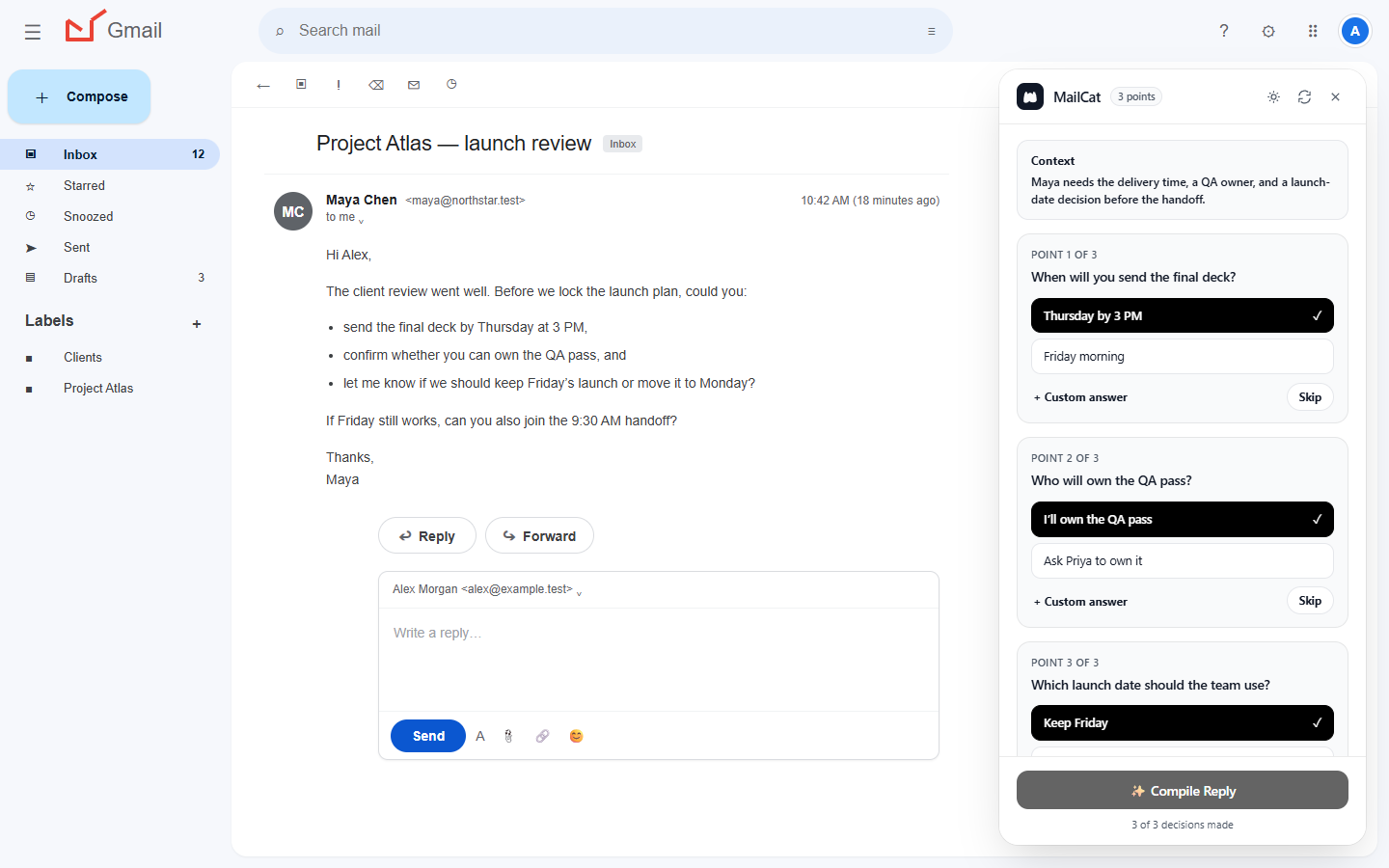
Compile a reply that keeps the boundaries intact
Example response after making your decisions
Hi Sam,
I can move delivery to Thursday if I receive final feedback by Tuesday. The two social graphics are additional scope; I will send an estimate for approval before starting those.
I can review the work Friday at 2 PM rather than in the morning. Does that time work for you?
Thanks,
Alex
Read the draft for accidental commitments. If “for approval” disappears, restore it. If a condition is unclear, edit the preview or request an update before inserting the text into Gmail.
Where an email assistant fits—and where it does not
This workflow is useful when an email contains several requests and you want a structured review before writing. MailCat is not a project-management system, calendar availability checker, contract reviewer, or automatic sender. It does not read attachments.
Do not process confidential client messages unless you are permitted to share their relevant content with the AI providers described in the privacy notice. Inspect the original email yourself because AI can miss details.
Try it on a realistic reply
MailCat has a seven-day, no-card trial from account creation. Continued access costs US$9.99 per month plus applicable taxes; fair-use and service-availability safeguards apply. There is no automatic charge during the trial.
Follow the installation and Gmail walkthrough, then compare the draft against your own answer map. Judge whether it helps your workflow rather than assuming a fixed amount of time saved.
Separate your responsibility from the drafting help
| You decide | MailCat helps express |
|---|---|
| Capacity and delivery date | The date and conditions you actually supply |
| Scope and fee approval | The boundary and proposed next step |
| Meeting availability | Your confirmed option or request to check later |
| Whether the reply is safe to send | An editable preview for your review |
See the freelancer product-fit walkthrough, or use the manual scope-change examples without installing anything. If a draft only says “Sounds good,” check whether it has accidentally accepted work, timing, and price together.
Get MailCat
7 days free, no card. Then US$9.99/month plus applicable taxes.