
How to Use an AI Email Reply Assistant in Gmail
An AI reply assistant should help you express your decisions—not decide your availability, pricing, or commitments for you. Here is the MailCat workflow from installation to final review.
By MailCat · Published · Updated
1. Install MailCat and sign in
Add MailCat from its official Chrome Web Store listing. Open the extension popup and sign in with Google. Read the privacy and AI-processing disclosure before using it with messages you are not permitted to share.
The seven-day trial begins at account creation. It requires no card and does not automatically charge you. Continued access is US$9.99 per month, plus applicable taxes. This walkthrough is for Gmail in desktop Chrome, not the Gmail mobile app or Outlook.
2. Open the email and click Reply
In Gmail, open the message you want to answer and click Reply. MailCat connects to that reply's thread and editor. It analyzes the visible target message and relevant visible quotations to identify questions and decisions.
It does not read attachments or perform a background scan of your entire inbox. Read attached files yourself and supply any necessary information in your answers. If a request has been missed, add it in your instructions.
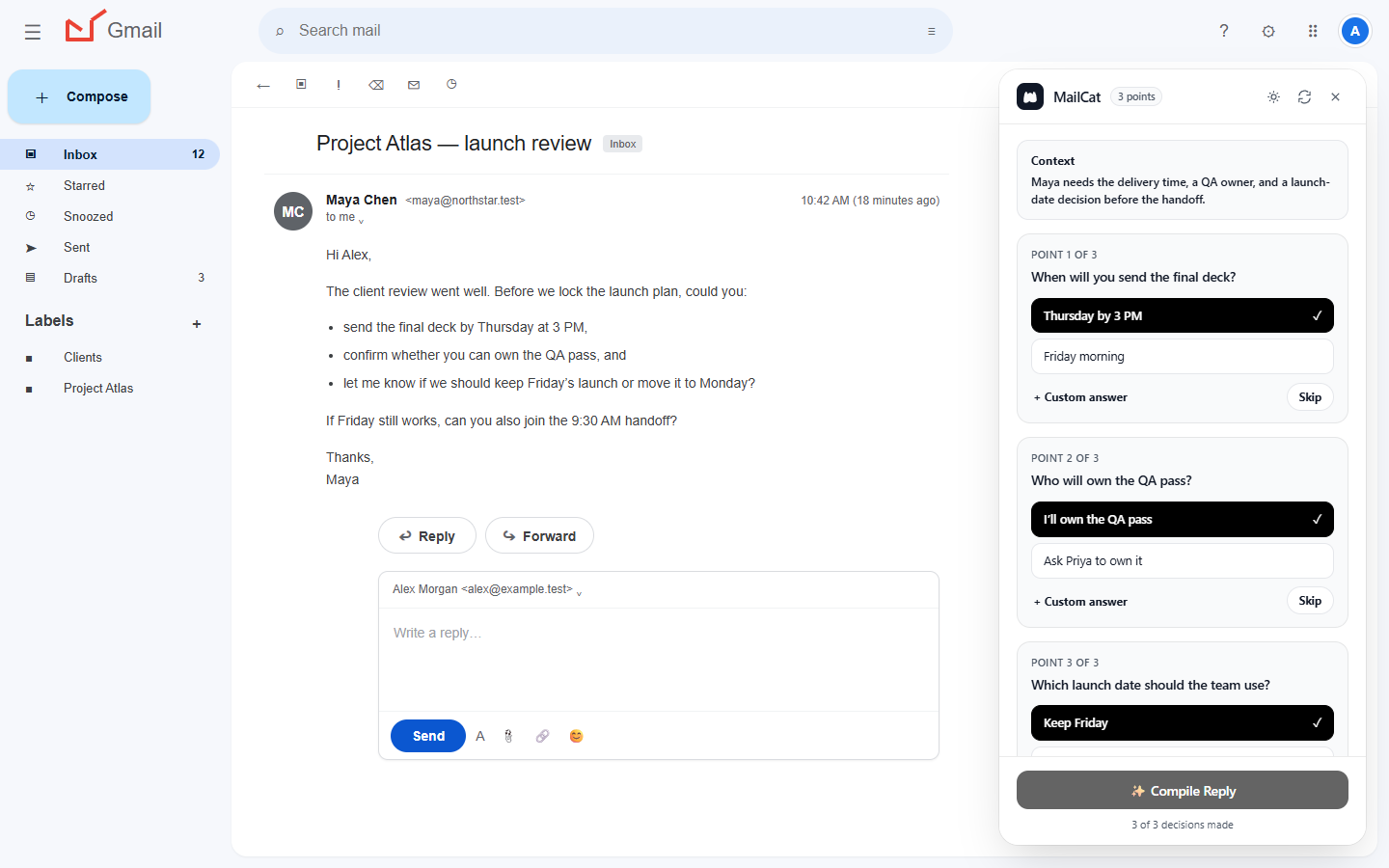
3. Choose what you want to say
Review each point. Pick a suggested option, enter your own answer, or skip a point you do not want included. You can also add a single instruction for the whole reply—for example, “Keep this concise and make clear that the date depends on receiving feedback.”
Supply facts yourself. An assistant cannot know your calendar or approve extra work just because a sender asks for it. Confirm dates, amounts, names, and commitments before compiling.
Each detected point must be answered or skipped before compiling. Include at least one answer or an instruction. Cards do not let you edit detected questions or add new cards; use “Anything else to include?” for missing requests or extra facts. If you skip an unknown answer but still want to acknowledge it, say that in your instructions.
4. Compile and revise the draft
Click Compile Reply. Read the preview against the original message and your choices. You can edit the wording directly, or describe a change and click Update draft. Check that a revision has not removed an important condition.
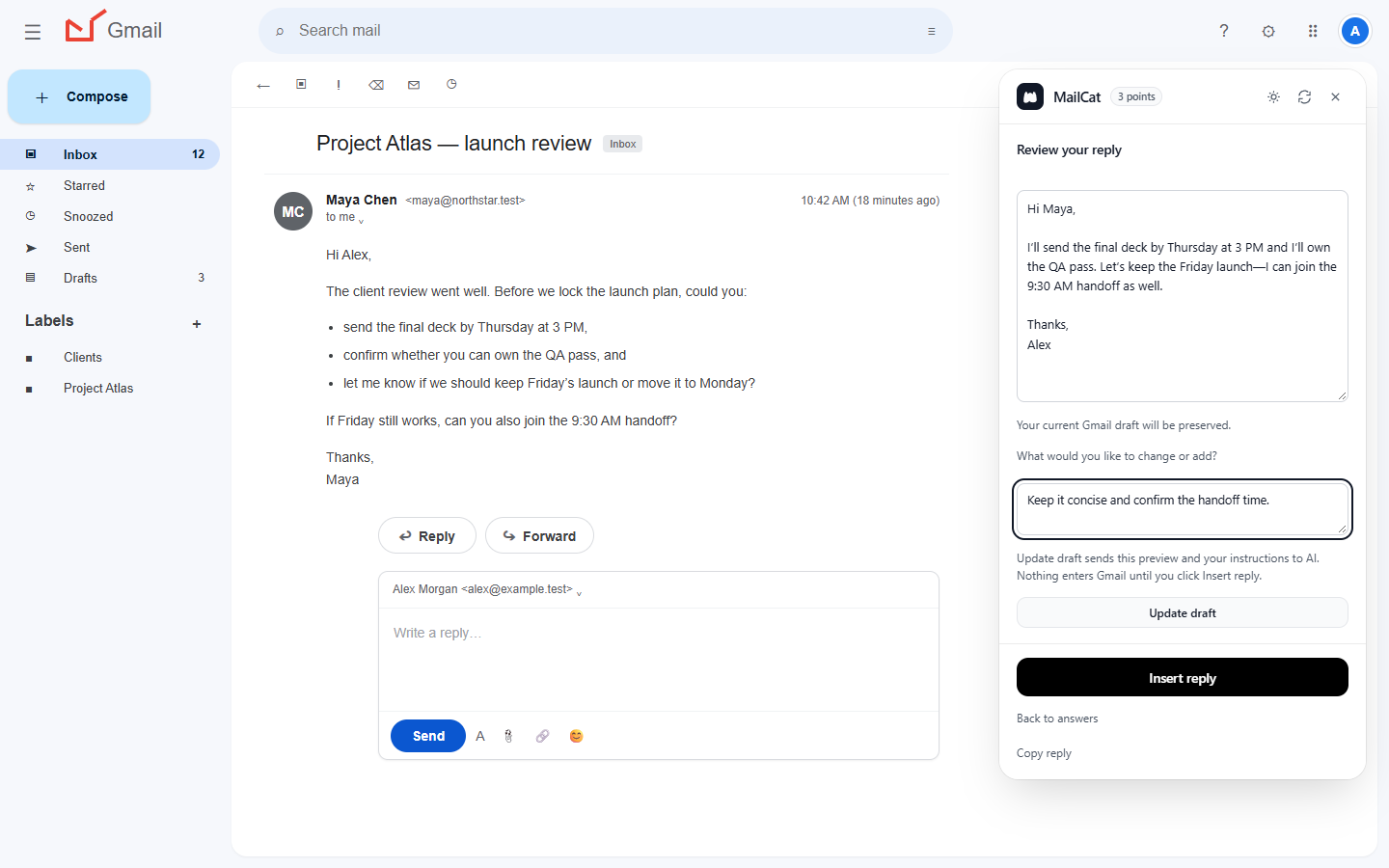
5. Insert, check, and send yourself
When you are satisfied, explicitly choose Insert reply. MailCat writes into the connected Gmail editor and preserves your existing draft. Review the final combined text, recipients, and attachments in Gmail before pressing Send. MailCat never sends the message for you.
When this workflow is useful
Try it for a client email that combines a deadline, scope change, and meeting request, or a project message with several owners and next steps. For a two-word acknowledgment, typing your own reply may be simpler. Read our multi-question email example for a concrete decision map.
Where the email content goes
Relevant message text, choices, and instructions are sent through MailCat's backend and AI providers for processing. “Never sends email” does not mean “never sends data.” Review the privacy notice for providers and retention details.
Try it without inventing information
Fictional message for a manual practice run
Can you send the draft Thursday? Does the package include mobile? And can you review the attached PDF?
Suppose Thursday is confirmed, mobile is outside scope, and you have not read the PDF. Your answers should state all three facts. An appropriate draft confirms Thursday, explains the mobile boundary, and says the document review is pending. MailCat cannot infer the PDF contents.
Use the draft-review checklist and attachment-request examples to check the final email yourself.
Get MailCat
7 days free, no card. Then US$9.99/month plus applicable taxes.